This section covers detail on revenue transaction fields. Conversion notes can be found way at the bottom of the page!
Transactions in CRM have 2 levels:
- The Revenue Level contains information about the donation as a whole, each transaction only has one revenue level. It includes information like gift date, payment information, tributes, inbound channel, etc.
- The Application Level has information about how the donation should be applied and who should be recognized for it. A donation can have one application, or can have multiple applications when one donation can be split between multiple funds, or when one donation is used to make a pledge payment and to register for an event.
The verbiage used can be confusing because CRM sometimes uses the same field names at both levels, so the meaning of say “Type” varies depending on context. See examples below.
Revenue Level
These are fields that apply to the donation as a whole, as opposed to fields that are part of a split transaction (for example when one donation is applied to multiple designations/funds).
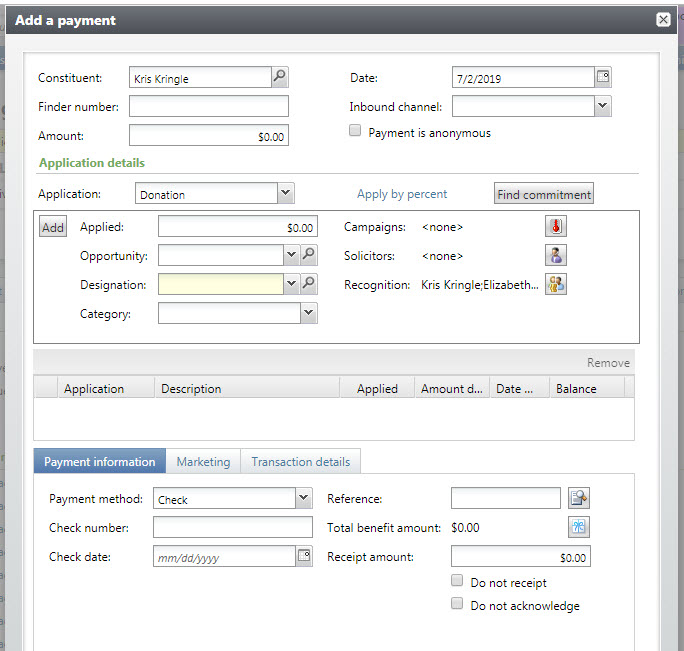
Date – credit date of the gift
Transaction type – What type of donation is this? Payment, Pledge, Recurring gift, Matching gift claim, Planned gift, Grant award, Auction donation, Donor challenge claim, Membership installment plan.
Finder Number – mailings that are generated through Atlas can have a finder number added. Once entered, this finder number can default the constituent, fund, appeal and marketing effort.
Inbound Channel – the inbound channel describes how this transaction arrived in the development office and can be used for tracking purposes. Values include Mail, Staff Member Delivery, Phone, Email, Affiliate Web Site, Vendor Web Site, Broker/Securities, Wire Transfer, Lockbox, Non-development revenue, Payroll and Conversion. “Cross Affiliate Gift Soft Credit” is used in the rare occasions where one donation a split across multiple affiliates; for MGB-wide aggregate reporting these inbound channels are excluded to avoid double-counting. For conversion details see RE to CRM Revenue Translation
Amount – the overall amount of the donation
Is Anonymous – check box to indicate this donation is anonymous. If the donor is marked anonymous this will default.
Pledge Subtype – additional information about the pledge, Conditional, Payroll Deduction or Regular. For conversion details see RE to CRM Revenue Translation
Payment Method – how is the payment being made, pledges have a payment method of credit card, debit, or none
Check Date and Check Number – add per affiliate’s guidelines
Reference – text field similar to RE
Benefit – is there a benefit associated with this donation that may affect tax-deductibility
Gift-in-Kind – Add item name, market value and appraisal information (formerly in gift attributes)
Receipt Amount – donation amount accounting for any benefits received
Source Code/Appeal/Marketing Effort – a big change from RE is that there is only one appeal per donation. The source code is from Marketing and Communications, including information on the marketing effort and segment that generated this revenue
Letters – Letters can be assigned during entry, but also defaulted if the transactions meets certain criteria. Any information on reminder holds also displays here
Receipt Status/Receipt Number – During conversion we defaulted these to “Receipted”. In CRM a receipt number is required so these have been assigned as the donations converted.
Tributes – tributes associated with this transaction. CRM assigns tributes to specific designations, so if the gift is split between funds you can assign the tribute to the appropriate fund.
Post Date and Post Status – used similarly to RE
Attributes – attributes are available at the revenue and the application level
Payment SubType Attribute: Values include Bond, Donor Advised Fund, IRA Rollover, Life Insurance, Mutual Fund
Documentation – notes, media or links for this transaction. Tax Form documentation is added here.
Classifications – Revenue Classifications allow a more detailed allocation of revenue to event specific areas
Application Level
Application describes where this revenue is applied. One transaction in CRM can be applied to multiple applications. In some ways this is similar to a split gift in RE.
Application – where is this transaction applied? Values include: Donation, Pledge, Event Registration, Recurring Gift, Other, Planned Gift, Matching Gift Claim, Grant Award, Auction Purchase, Donor Challenge Claim. For conversion details see RE to CRM Revenue Translation
Attributes – attributes are available at the revenue and the application level
Business Unit – the business unit associated with this revenue. This defaults from a variety of sources: for payments from the pledge business unit, from the solicitor’s business unit, then the business unit associated with the marketing effort and finally the BU of the appeal. The business unit can also be manually overwritten. For conversion we defaulted the RE campaign dev unit if it exists, otherwise the dev unit from the appeal. See also Business Units
Application Type – Gift, Event Registration, Membership, Other Sponsorship, Sponsorship Addl Gift, Auction Purchase, Grant Award, Membership Add-on. For conversion details see RE to CRM Revenue Translation
Applied Amount – Amount for this application. If the gift is not split, this is the same as the overall transaction
Opportunity – any opportunities (RE proposals) linked to this transaction. In CRM a transaction can only be linked to one opportunity
Designation – the fund where the transaction should be credited
Category – not in used at this time
Campaign – which campaign should be associated with this application. Multiple campaigns can be added.
Solicitors – solicitor credit for this transaction
Recognition – recognition credit associated with this transaction
Examples
$100 outright gift to one designation
- Revenue Level
- Revenue Amount: $100
- Transaction Type: Payment
- Application Level
- Application Amount $100
- Application: Donation
- Application Type: Gift
$100 outright gift split between 2 designations
- Revenue Level
- Revenue Amount: $100
- Transaction Type: Payment
- Application Level1
- Application Amount $100
- Application: Donation
- Application Type: Gift
- Application Level 2
- Application Amount $100
- Application: Donation
- Application Type: Gift
$100 pledge to one fund
- Revenue Level
- Revenue Amount: $100
- Transaction Type: Pledge
- Application Level
- Application Amount $100
- Application: Donation
- Application Type: Gift
$100 pledge payment
- Revenue Level
- Revenue Amount: $100
- Transaction Type: Payment
- Application Level
- Application Amount $100
- Application: Pledge
- Application Type: Gift
$100 event registration
- Revenue Level
- Revenue Amount: $100
- Transaction Type: Payment
- Application Level
- Application Amount $100
- Application: Event Registration
- Application Type: Gift
$100 event registration with a $25 benefit
- Revenue Level
- Revenue Amount: $100
- Transaction Type: Payment
- Application Level 1
- Application Amount $75
- Application: Event Registration
- Application Type: Gift
- Application Level 2
- Application Amount $25
- Application: Event Registration
- Application Type: Event Registration
Conversion Notes
- RE adjustments converted to revenue documentation
- RE allows the pledge payment to be applied to a fund that is not on the original pledge. This is not allowed in CRM so additional splits are created on the pledge to accommodate the payment
- RE packages converted as a revenue attribute, in CRM these are Marketing Efforts
- There is only one appeal on transactions in CRM, so if the appeal is split in RE we added CRM revenue attributes to show how much was credited to each appeal
- For validation purposes, gift ID, gift system ID, gift subtype, RE batch number, GL Post Date, GL Post Status, RE Bank Name and RE package were all added as attributes
- RE gift attribute “Tax Form” moved to CRM revenue documentation. For all RE gift attributes with the category of “Tax Form”, create a CRM revenue note with note type = the word “Tax ” pre-pended to the attribute description in RE, for example “Tax Form 1098-C (car, boat, plane)”, Note Date = attribute date, Note Title = “Tax form sent to donor”, Note = attribute comment
- Gift attribute Valuation Method to If description is anything other than ”Market Value’ convert to Appraisal using Consituent as the Appraiser (if required), Attribute Date as the Date Appraised, GIK Estimated Value Description as the Appraised Value, Attribute Description as Description (e.g. Replacement Cost, Donor Provided, Professional Appraiser’ ) and concat any Attribute Comments.
- GIK Description to Convert to Gift in Kind/Item Name, GIK Estimated Value to Convert to Gift in Kind/Market Value.
- RE allows a single gift to be split on the appeal, campaign, or package, in addition to the fund.
- In CRM there is only one appeal, so RE gifts split on appeal have the appeal information moved to attributes.
- In CRM the only way to can use the same fund on a split is to use a different application, so split gifts that are not linked to an event are “unsplit” during conversion
- For MGH and CDHC the gift constituent code converted for some revenue