
In process, and coming soon to an Atlas database near you!
MGB realizes that merging duplicates can be a time consuming process, but we all know how important it is. We have developed an automated process that that affiliates can opt into.
- On the first Monday of each month, a queue will initiate the Full duplicate search process. This procedure identifies pairs of constituents that could be merged based on name and contact data (address, email, and phone). This does not merge any constituents, just identifies possible duplicates and assigns a match percentage.
- On the second Monday of each month, a report will be generated an emailed to specified users to alert them that the Full duplicate search has finished and inviting them to review the identified duplicates on the Preview merge tab.
- On the third Monday of each month, a queue will initiate the Constituent merge process and merge pairs of duplicates with a xx% or higher Match percentage. The percentage used has ranged from 90% to 97% in our testing, the exact percentage you use will be set by your affiliate after review of the identified duplicates.
Handling Exceptions
If there were exceptions – cases where Constituent merge attempted to merge two constituents, but failed – the Recent Status window for the Constituent merge process will show this. Click on Download output to review the actual exceptions and click on the Merge tab to review pairs that were not merged.
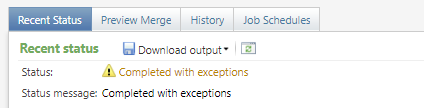
Some tips on handling exceptions:
- Some exception messages are very obvious (e.g. The constituents could not be merged because the dates of an employment history item on the source constituent overlaps with the dates of an employment history item on the target constituent). Make the recommended updates and attempt the merge again.
- Other exception messages indicate that perhaps the two records are not duplicates after all. (e.g. The constituents could not be merged because both constituents have registrations for the same event and one or both of the constituents have event registration payments or event registration payments pending in an uncommitted batch. The payments may be duplicates.) In this case, use the Do not merge task on the Preview merge tab to add a relationship between the two constituents to prevent them from being merged.
- Errors can often be resolved by swapping the source and target constituents. On the Preview tab, click on the chevron to open the secondary view, and then click on Merge now. The Merge window will open with the target and source constituents defaulted. Click on the Switch button and try the merge again.
- If that doesn’t work, search for the specific error message in your web browser; Blackbaud may have provided a work-around.
- If you don’t find anything, open a ticket with the EDO, and we’ll try to hunt it down for you.
Good to Know!
- Use the Preview merge tab to verify that the identified pairs are legitimate, and to add a relationship that will prevent the pair from ever being merged if they are not.
- There will be a selection “MGB Automated Duplicate Process Exclusions” that the affiliate admin should update to identify any constituents who should not be part of the automated merge, such as constituents under management. Note that you should have a process in place to manually review duplicates for the group you are excluding from the automated process.
- Only Individuals are considered for merging.
- Blackbaud’s complete Duplicate Constituents and Merge Tasks Guide can be found here.