
The Preview Merge details tab can be accessed after a duplicate search process has run and a Constituent Merge process has been created. Click on the name of the Merge process; the Preview Merge tab lists pairs of potential duplicate constituents who will be merged when the Constituent merge process runs. The Preview Merge Details tab is a copy of this list with filters and some additional columns. The goal is to help you narrow down the list of potential duplicates that might need review prior to running the Merge process.
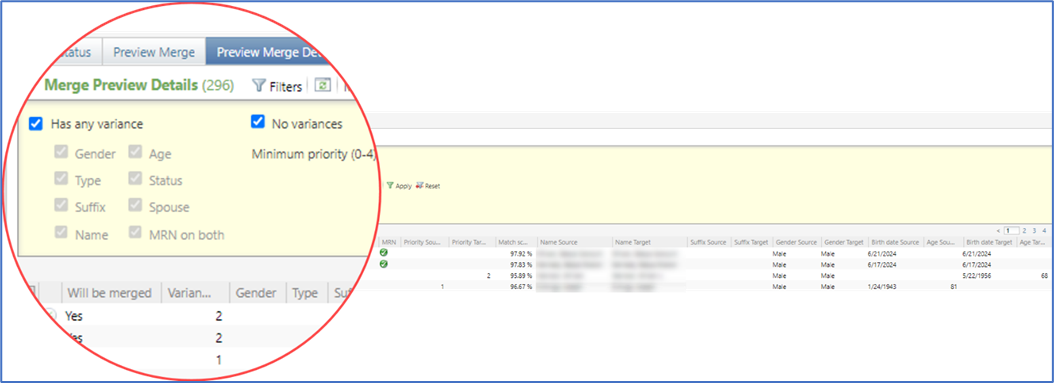
You can filter to show only potential duplicate pairs with any variance or one or more or the listed variances.
To list all the pairs that will be merged, check both Has any variance and No variances.
In the data list, each variance type has its own column, and when a variance exists between the two constituents, the column contains a green check.

What’s a variance?
A variance is a difference between the two potential duplicates. This list is narrowed to fields that might indicate that the pair are not actually a match. The variances tracked on this page are listed below.
o Gender. Genders or Titles’ genders are not blank and do not match and are not Unknown.
o Type. Constituent types (Ind/Org/HH) do not match. Note that Constituents of different types cannot be merged.
o Suffix. Suffixes are not blank and do not match, generational only (Jr, Sr, II, III, IV, V).
o Name. Last names or First names are not blank and do not match.
o Age. Age (based on birthdates) are not blank and do not match.
o Status. Deceased or Inactive statuses do not match (e.g., one constituent is deceased or inactive and the other is not).
o Spouse. Spouse first names are not blank and do not match.
o MRN on both. Both constituents have the same type of MRN (e.g., both have a Partners MRN, making it unlikely that they are a duplicate pair).
What is Priority?
Priority score is the same value used by the Atlas Portal to prioritize setting Atlas ID. This can further help you narrow a long list of duplicates to potentially only those that require some review prior to merging.
The score is calculated as follows:
- 1 point if they have a prospect manager,
- 1 point if they have a proposal,
- 1 point if they have a constituency with the words Board or Trustee, and
- 1 point if their lifetime giving total is $100k or above.
If the list is long, you might want to focus your review on constituents with a score of 3 or 4.
What else can you do here?
-
-
- Sort by any of the available columns. For instance, sort by Match score to find pairs with a lower score that might require review.
- Export the list for detailed review. The list now contains all the data from the additional view for both the Target and Source constituents on one line.
- Use the Merge now task to launch the Merge two constituents window to merge the pair immediately.
- Use the Do not merge task to add a relationship between the two constituents so they will never be selected for merge again.
- Use the Delete match task to delete the duplicate pair from the duplicate search process results. The pair won’t be merged, but they could be selected again when duplicate search runs.
- Click on the first column to select multiple rows for the Do not merge and Delete merge tasks.
-

Good to Know!
- Blackbaud’s complete Duplicate Constituents and Merge Tasks Guide can be found here.
- This window also contains an Task labelled Merge Now, which launches our custom Merge two constituents window.