
Atlas includes a custom view form on the Preview Merge Tab to make it easier to determine whether or not merges are “legitimate” without having to open each constituent for research.
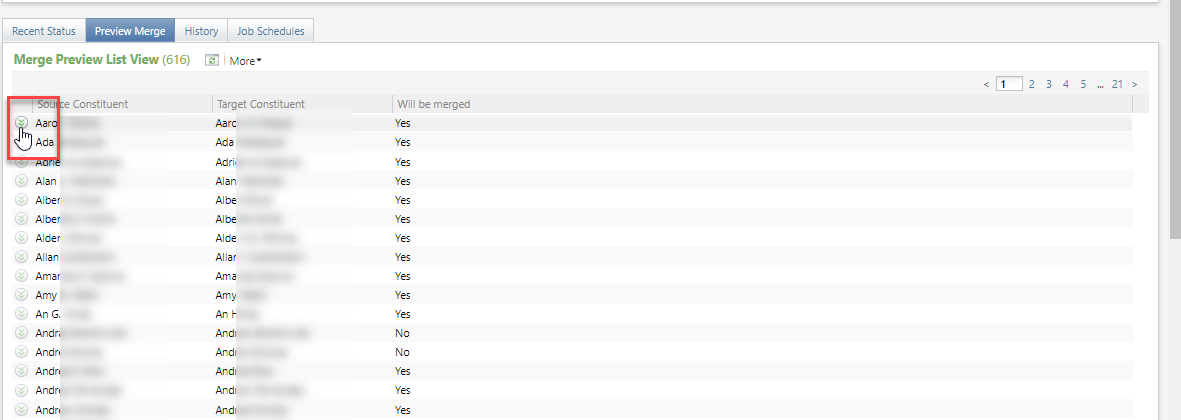
Constituent merge functions are located in Atlas under: Constituents > Duplicates (in the Maintenance cluster) > Constituent Merge > Merge Processes Tab > Click on a Process >and select the Preview Merge Tab. Click on the down arrow to expand any pair of constituents.
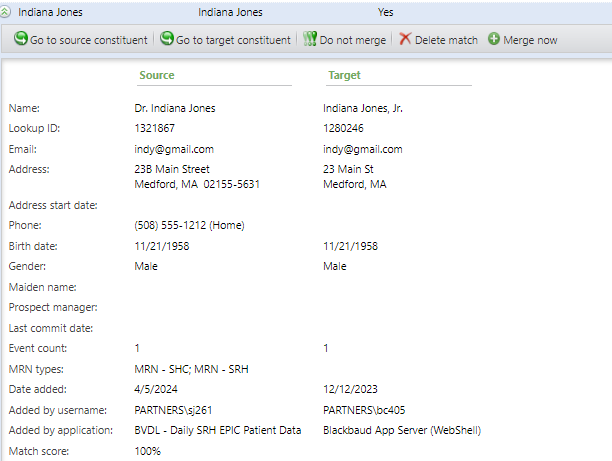
The custom form includes the following fields.
- Name. This will show the default formal addressee name format, which should include a title and suffix, so you can easily tell if the constituents are actually senior and junior and not the same person. If the constituent is deceased, the word (deceased) will be included.
- Lookup ID.
- Email. This will list the primary email address.
- Address. This will list the primary mailing address.
- Phone. This will show the primary phone number and type.
- Birth date.
- Gender.
- Maiden name.
- Prospect Manager. This will list the constituent’s prospect manager or associated prospect manager, if one exists.
- Last commitment date.
- Event count. This will show the number of events to which the constituent was invited, was registered, or attended.
- MRN types. This will list which MRN types exist on the constituent’s record. This will never list the actual MRN, which is limited to specific system roles. Remember that a specific type of MRN is unique across your database, so if two constituents have the same type of MRN, they are likely not the same person.
- Date Added
- Added by username
- Added by application. For records created by a BVDL import, this should show the BVDL Job name.
- Match score.
Good to Know!
- Blackbaud’s complete Duplicate Constituents and Merge Tasks Guide can be found here.
- This window also contains an Task labelled Merge Now, which launches our custom Merge two constituents window.
How Do I?
- Learn more abut managing duplicates in Atlas?
- Filter the list of merge pairs? Use the Preview merge details tab.
- Make sure two similar constituents are never merged? Click on the Do not merge task. (See the screenshot above.) This adds a Do not merge relationship between the two constituents, and the Constituent merge process never merges related constituents. (Note that the Delete match task only removes the possible match from the current process. To prevent a pair from ever being merged, use Do not merge.)