
This new smart field has been added to make it easier to see the total number of patient visits for a constituent. This information is difficult to obtain in ad-hoc query; as soon as the result set or criteria include provider or encounter data, the total number of visits is multiplied. The Smart field has one parameter: an EPIC Patient Visits selection.
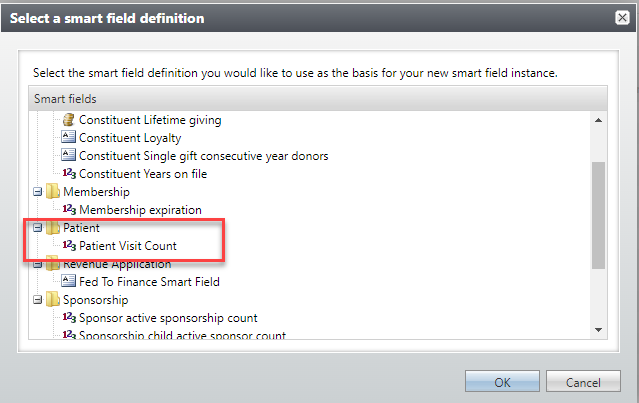
Administrators can create new Smart fields via the Administration functional area. Click on New and select Patient Visit Count.
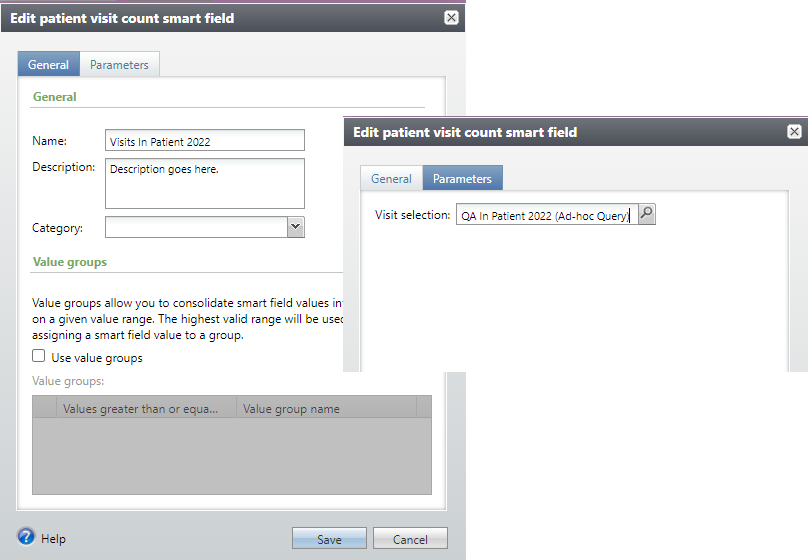
The form to Add a Smart field has two tabs: General and Parameters. For an instance of this particular Smart field, enter a Name and a Description, select a Category (optional), and on the Parameters tab, search for and select an EPIC Patient Visits Selection.
Good to Know!
- When creating a new ad-hoc query to use to build the patient visit count smart field, choose EPIC Patient Visits for the Source view, rather than Constituents (and including fields from the EPIC Patient Visits node). This will ensure that the Smart field returns only counts each visit once.
- This Smart field only contains non-confidential visits, so for users with the Epic Confidential Visits System role, the visits summarized and listed on the Patient tab won’t necessarily match the values in a Patient visit smart field.
- This Smart field will not appear at all for a Constituent with no qualifying visits (as opposed to the Revenue smart fields, which show $0 when there’s no qualifying giving).
- Smart fields must be processed in order to appear on constituent records. You can Process a Smart Field at any time with the Process smart field option on the Smart Fields list.
- To calculate a Smart field regularly, add it to the Donor Smart Fields queue, which is included in the Master queue running nightly.
- Smart field instances must be permissioned separately in order for users to see them. Administrators can do this via Administration >> Security >> System Roles; select a role, go to the Smart Fields tab and click on Assign smart fields.
How Do I?