
Prospect manager (or Associated prospect Manager) for a constituent can now be displayed in enhanced revenue batches. There’s also an option to indicate whether or not a constituent is under management instead of (or in addition to) Prospect manager.
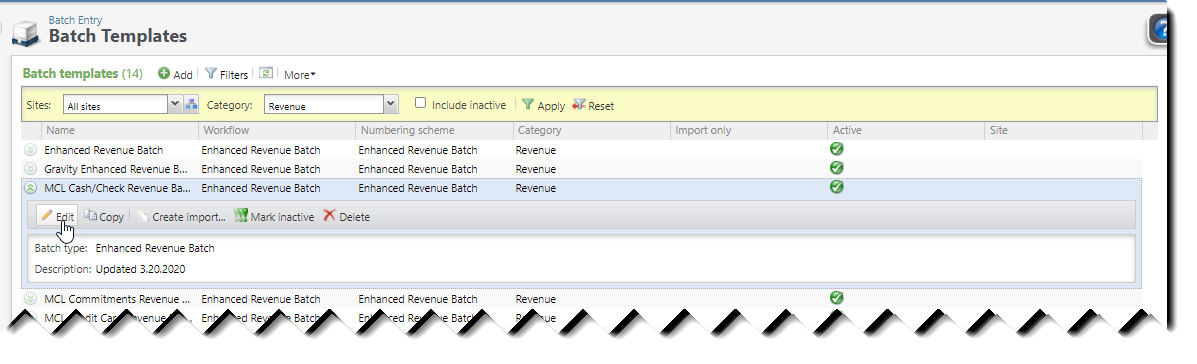
To add these fields to a Batch template, go to the Batch templates list and click on Edit for Batch template to update.
Go to the Select fields and defaults tab and move the Prospect manager and/or the Under management fields to the list of Selected fields. Use the up and down arrows to put the columns in the proper order.
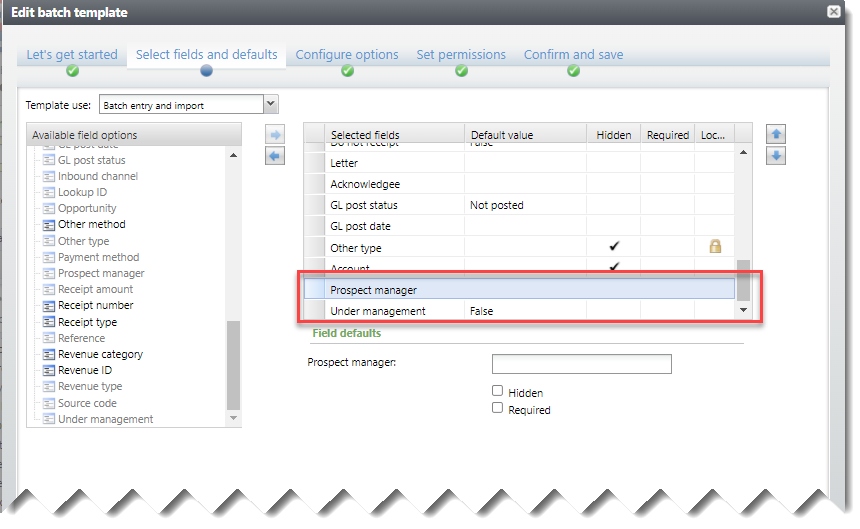
Click on Save to save your changes.
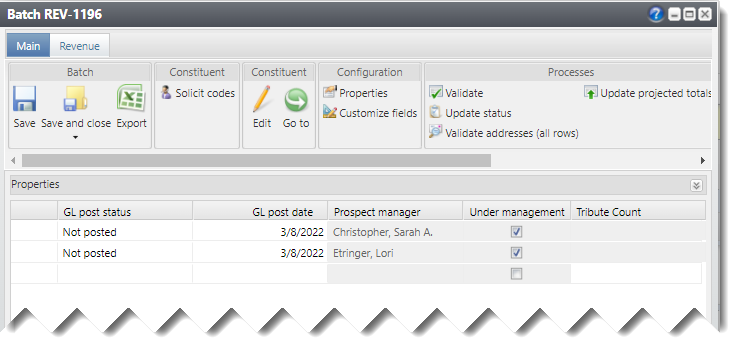
Create a new Batch using the updated Batch template. As constituents under management are added to the Batch, the Prospect manager column shows the Prospect manager name (or the Associated prospect manager name), and the Under management column shows a check mark.
Good to Know!
- Note that while the Default value field and the Hidden and Required checkboxes are all enabled when setting up a batch template, the Prospect manager and Under management fields are read-only in Batches. These settings should not be changed.
How Do I?
- links to other areas, longer blurbs