
The standard window that launches when you add a global change had no filtering options, making it difficult to find a specific global change or even understand what global changes exist. This window has been enhanced to include filters and some new columns with details about each global change definition.
To see this window, go to the Global changes datalist and click on Add.
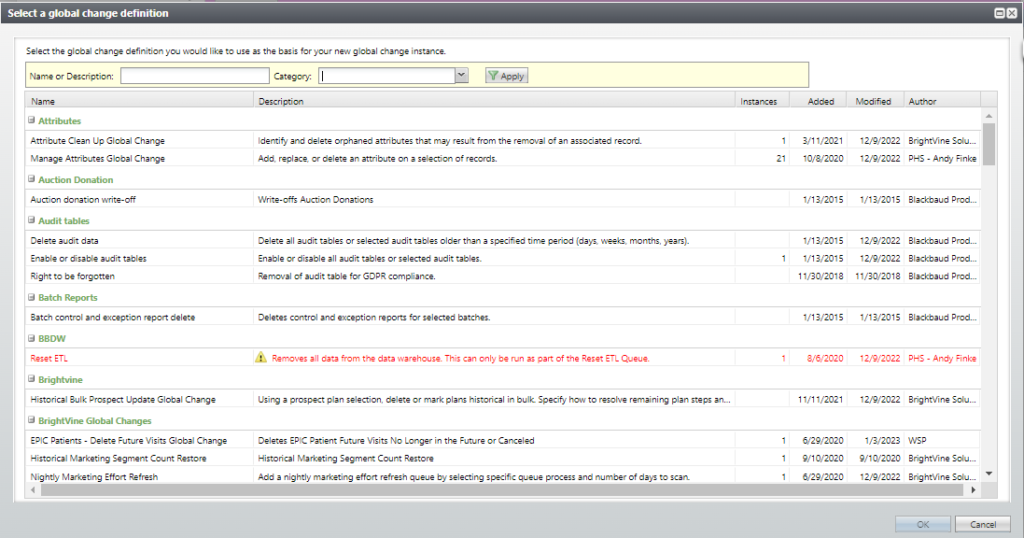
The columns are
- Name
- Description. This is a description describing the functionality of the global change. For longer descriptions, hover over the column to see the full text.
- Instances This is the total number of instances of this global change that have already been created.
- Added This is the date this global change definition was added to Atlas. This is to help identify new global change definitions as they are introduced.
- Modified This is the date this global change definition was last modified. This is to help identify global changes that may have changed since they were introduced.
- Author This shows the author of this global change definition. This is to help distinguish standard CRM global change definitions from custom ones. (Standard global changes will typically read Blackbaud Product Development.)
The new filters are
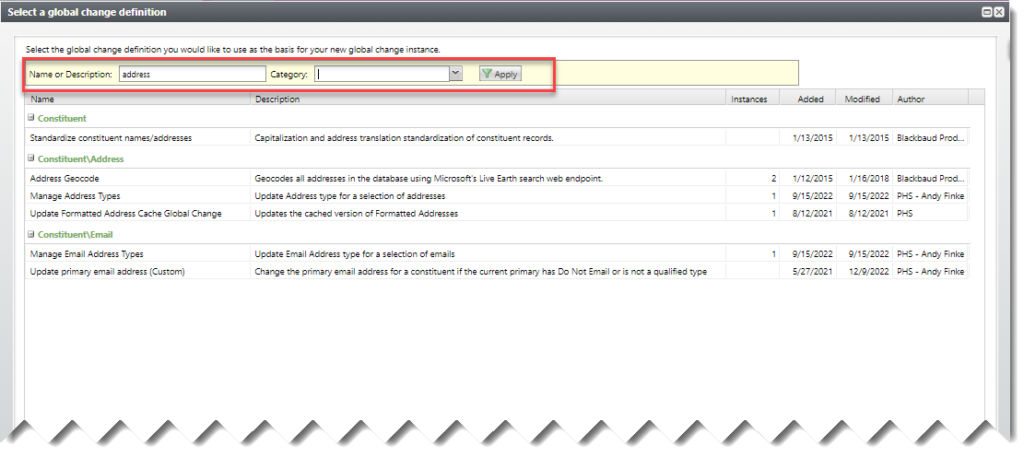
- Name or description. This filter enables you to search both the name and description columns for a specific string; for instance, to find all global changes referencing address, type “address” here and then tab. (See below.)
- Category. Global change definitions are grouped into categories (or folders). Use the drop-down list to show only global changes for one particular category.
Good to Know!
- This window is permissioned for Affiliate Admins and Managers and the Global Changes system role.
- You can add permissions to specific instances of a global change. See the Security Admin page.