
The Generate Step Update Batch Process creates a Stewardship Plan Update Batch, which can be used to make bulk updates to a selection of Stewardship Plan Steps. The standards CRM process allows for updates to Target Date, Assigned To, Contact Method, and Objective. This customization enables updates to the following fields, as well:
- Category
- Status
- Frequency
- Frequency Start and End Date
- Actual Date
To use this feature, go to Prospects >> Stewardship Administration >> Manage stewardship plans in bulk; go to the Generate Step Update Batch Process and click on Add.
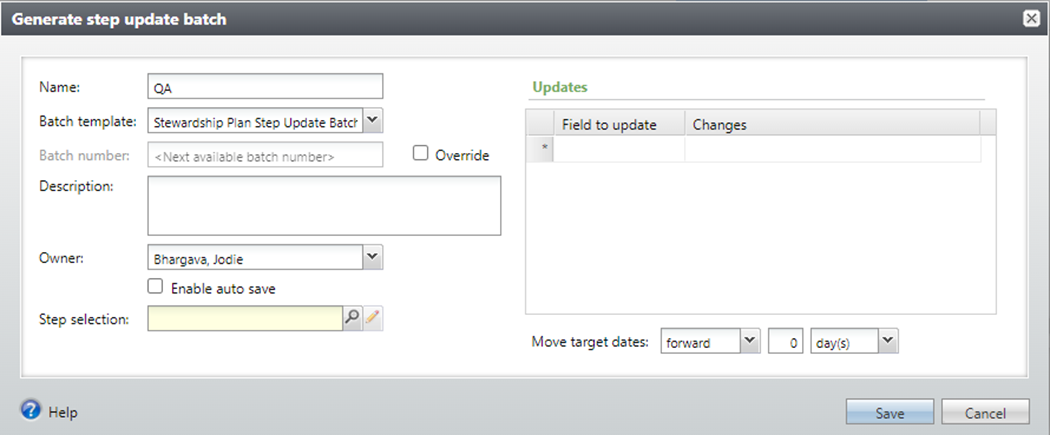
Name Required. is the name of this business process instance.
Batch Template Required. This process does not update anything directly; rather, it creates an update batch that can then be reviewed and processed. Select the Batch Template from the drop-down list. All affiliates have one default Stewardship Plan Step Update batch template, but more can be created as needed.
Batch number Required and disabled. This field will default as per the workflow defined for the batch template.
Description Add an optional description.
Owner This field defaults to the current user, but can be modified.
Enable auto save This field defaults to the value saved with the selected Batch Template, but can be modified here if you would like this particular process to create batches with auto save turned off.
Selection Required. Search for and choose a Stewardship Plan Step Selection.
Next, fill out the Update area.
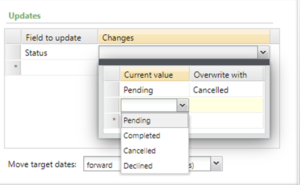
There are two columns: Field to update and Changes.
For Field to update, select the Stewardship Step Field to update from the drop-down list.
For Changes, there are two columns: Current value and Overwrite with. The values available in each of these columns will depend in which Field to update is selected; for instance, in the example above, the options listed are Pending, Completed, Cancelled, and Declined, which are the available options for Stewardship Plan Step Status. You can add as many different rows as necessary. For instance, you could specify that Steps where status = Pending, set status = Cancelled, and for Steps where status = Completed, set status = Declined. (Note that the Current value list contains inactive values, but the Overwrite with list does not.)
Once the process is defined, click Save. To generate a Batch, click Start process. Once the process completes, you can go to Batch to carefully review and Commit the batch, which will make the actual update to the Steps.
Good to Know!
- If a field is not available in the Overwrite with drop-down list, it is because it’s not allowed in Stewardship Step Update batches. For instance, you cannot set Status to “pending” using this feature. Note that for Frequency, the list of overwrite with values does not contain the value “single occurrence” due to a defect in the standard CRM Batch process that would ignore these rows.
- If you try to include fields in the Update section that are not in the selected batch template, you won’t be able to save the process; an error indicating that “not all fields to update are in the selected batch process”.
- Actual Date is required if Status is set to Complete; if you generate a batch where Status would be set to complete and Actual Date is not set, the batch will not contain your changes. Note that you cannot set actual date to blank.
- To update all blank Categories to some value, choose the blank line at the top of the Current values For instance, this example would set all rows where category is blank to “Correspondence”.

How Do I?
- links to other areas, longer blurbs