
This post is aimed at more technical users who are comfortable with SQL and have access to reporting services. Subscriptions are usually set up by EDO staff or AMC staff whose primary role is reporting. Many end users are not that aware that we have the capability of sending them their reports on a regular basis so they don’t have to remember to run them, our “sales” presentation aimed at end users with specifics on subscriptions using attributes in Atlas is here: Report Subscriptions
Types of Subscriptions
| Subscription Description | Type | Recipients | Parameters | Examples |
|---|---|---|---|---|
| Basic subscription in Reporting Services | Standard | Set when subscription is created in RS | Set when subscription created, usually use report defaults | Quick and dirty reports where recipients and parameter options unlikely to change much, like notification reports to EDO staff |
| Subscription using Constituent Attributes | Data-driven | Determined by end-users in Atlas | set when subscription created, usually using report defaults | Reports sent regularly to users at an affiliate like daily donor reports, one report to multiple recipients |
| Reports where content and recipients determined by other criteria | Data-driven | Determined by SQL selection | Report defaults, or updated with the SQL query | Monthly reports sent to PIs with detail on donors to their funds in the past month |
| Subscriptions with scheduling needs beyond the capability of the RS scheduler | Data-driven | Determined by SQL query OR specified when subscription created | Report defaults, or updated with SQL query | Monthly dashboards that need to be sent on the 4th weekday of the month |
| Notification subscriptions that don't require a report | Standard or Data-driven | Determined by SQL query or specified when subscription created | no parameters, report is blank and only exists to hang subscriptions on | Notifications that duplicate identification is complete, etc |
Basic Steps
Creating subscriptions
Navigate to the report you need in reporting services, and choose manage, subscriptions. See example below to create a new subscription or to edit existing ones. Note: due to vagaries in updates and versions of all the underlying software, sometimes you need to access the subscription using Chrome in incognito version if your regular browser fails or returns strange results.
What kind of subscription do I need?
Once you make a choice and create your subscription, you cannot change the subscription type – you will need to re-create it.
- Standard – standard works to send this one report to selected recipients at a given schedule. Most of our early subscriptions were set up this way, and these require manual updates by someone familiar with this process.
- Data-driven – used when standard is too limited which can include: a report sent to staff that have the reporting subscription attribute, more complex reports like PI reports where report recipients and content are determined by donations in a date range, reports with more complicated parameters than the usual report defaults, etc.
Scheduling
Click on Edit Schedule to set the schedule for this report to be delivered. There are multiple options available. Please note: 9am is never a great time to schedule a report as the system is busy as users log in and performance can be a little slow, the DW is usually fully loaded by 8:30 or so but 10am or later is even better, Saturday mornings are often windows when some updates are done and the DW is completed later than usual.
Destination
E-mail is the most common, but this process can also create a file and download it to a specified file share. Note that the server system user needs to have access to the selected file share location. The email sender will be [email protected], this is not changeable.
Dataset
If you choose data-driven subscription, the dataset option will appear. Click on it to specify your SQL selection which you should have created in management studio already. You need to select the data source, in this example we are adding a subscription to a report in IHP, therefore you MUST select a data source of IHP to avoid sending data from one affiliate to another affiliate. Past the results of your query in the query window.
Take note of the delivery options and the report parameters as you can customize all this information in your SQL query

Delivery options
The appearance of delivery option selection will vary depending on your selection of standard or data driven, but the same options are available regardless of selection. Standard allows you to type in the selections you want, data driven allows you to type them in, or use options from your SQL query. Note that emails should only be internal emails, we do not send any reports outside of MGB internal emails for security purposes.
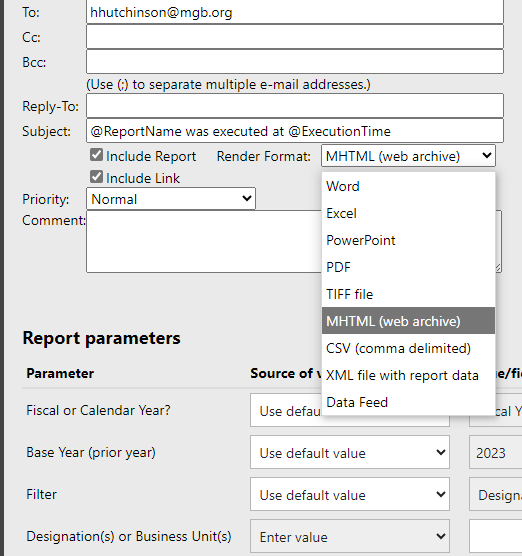
- To/CC/BCC,Reply-To: these should all be internal email addresses, with multiples separated with semicolons
- Subject: The @ values are variables, but you can change any of the text and remove the variables as needed
- Include Report: checked means the report will be attached to the email, this is usually checked
- Include Link: includes the link to run the report from reporting services, we usually leave this unchecked
- Render Format: selection here determines what format the end user will receive. Most commonly we use:
- Excel
- MHTML (web archive) this choice embeds the report into the body of the email
- Priority: usually normal, but you can mark urgent if you need to
- Comment: this is the body of the email
Report Parameters
You can set the report parameters as needed. Customarily you would default the data range that is needed by the parameter, for example default the fiscal year to always be the current fiscal year, etc. You have the option to choose the default, leave it blank if not required, enter a specific value, or if you are doing a data-driven subscription you can also select a value from the SQL query.
IMPORTANT TO NOTE: Be careful how your parameters are derived if you are creating a report that may be used in a data-driven subscription. This is especially true of parameters that involve selections like “select a prospect manager” or “select a designation”. Recall that the DW rebuilds each night, so dimIDs and factIDs are likely to be different on different days. So for example you build a list of prospect managers for a parameter and use the ConstituentDimID (12345) for the parameter value and sortname for the label (Smith, Jane). Let’s say we default Jane in the subscription, because the ConstituentDimID value is updated every time the DW builds, she may not have the DimID 12345 tonight. Instead of using the IDs that rebuild nightly, it is better to use LookupID or SystemID.

What happens if the subscription doesn’t run, or it runs but the BBDW hasn’t completed?!
Options here depend on how the report was written, and what version of reporting services is running (we have different versions in our different environments)
- You can set up report parameters so that the report will fail if the data warehouse has not finished running (see report templates or existing reports that do this). Especially important for financial reports that will not produce accurate figures if the DW is not complete.
- To re-send a report you can either choose resend if this is available in the version of reporting services running, or else you can manually edit the subscription schedule to force it to run right now, and after running manually edit it back to the way it was.
Fun variations
Sometimes it is easier to check out an existing report and subscription that does what you want 🙂
Subscriptions using Atlas Report Subscriptions Attributes
In sum, we create a data-driven subscription that finds all constituents that have a specific value for the Reporting Subscription attribute in Atlas. All constituents are concatenated with semi-colons as separators. The schedule, message and parameters are the same for all staff who receive the report, in other words all staff receive the same email.
- Create a new table value for the Report Subscription attribute that includes the report ID and an indication of when it is run, ex “GPR1020 Weekdays”. Add this attribute to appropriate staff at the affiliate, or at least 1 staffer (you can use yourself as a tester). Note the email requirements of the staff records in Atlas – they must have a usable internal email or will NOT receive the report even if they have the attribute.
- Wait a day for the data to be in the data warehouse, then use code similar to sample below to pull the correct staffers to receive the subscription. Fill in other fields for email and the report parameters as needed.
SELECTc.CONSTITUENTDIMID,e.DONOTEMAIL,e.EMAILADDRESS,e.CONSTITUENTEMAILADDRESSTYPE,e.ISPRIMARY,c.ATTRIBUTEVALUEinto #DistEmailsFROM bbdw.PH_V_CONSTITUENTATTRIBUTE cinner join bbdw.PH_V_CONSTITUENTEMAIL e on c.CONSTITUENTDIMID=e.CONSTITUENTDIMIDand e.DONOTEMAIL = 0and e.ISINTERNALEMAIL = 1where c.attributename = ‘Report Subscription’and c.ATTRIBUTEVALUE = ‘GPR1200 Daily’ — update the attribute value as appropriate, usually matches the report id–stuffs all the emails selected above into one field, leave this alone!declare @EmailTo varchar(1000) =(SELECT abc = STUFF((SELECT ‘; ‘ + emailaddressFROM #DistEmailsorder by EMAILADDRESSFOR XML PATH(”)), 1, 2,”))select @EmailTo,OtherDataNeededForSubscriptiondrop table #DistEmails
Variable Content and Recipients – PI Reports
This data-driven report sends one report to each constituent selected in the SQL (as opposed to the one above that sends ONE report to ALL of the selected staff). Best is to check out one of the existing reports to see how these are set up, and ensure that the PI is one of the report parameters. Also the SQL should have a default email to use if the PI does not have an internal email address, this will allow Dr. Jones’ report to be sent to a selected staffer if Dr. Jones doesn’t have an active internal email.
Needing a different schedule than what RS Offers
There are times when a schedule is needed that is not possible with the available options in reporting services. Our example is a report that needs to be emailed on the 5th weekday of the month. The report subscription schedule is set to run every weekday, and the data driven subscription is set to something like the following. The report will be attempted every weekday, but will only be sent when the SQL returns a value which will only be on the 5th weekday of the month.
Need a Reminder, but a Report is Unnecessary
Rarely, we need to send an email reminder but don’t necessarily need to have a report with data attached. We do this with a subscription on the blank report “Subscription_Placeholder” that is in each affiliate database for this purpose. One of the current uses is to send notifications about duplicate processing.