
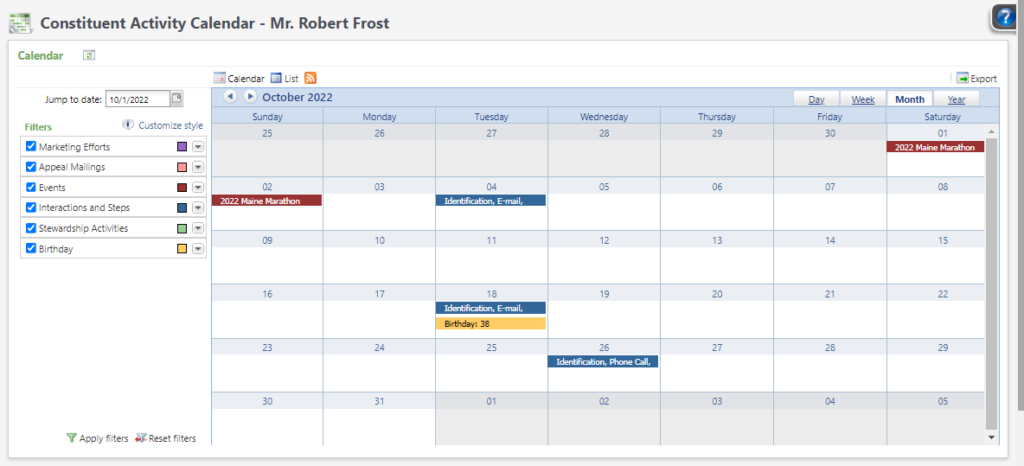
The Constituent Activity Calendar provides donor relations and fundraising staff with a visual means of understanding correspondence, touchpoints, communications, and other fundraising activities that have occurred or are planned for a constituent. Like the existing CRM Organization and Event Calendars, this view provides a visual and comprehensive understanding of whether donors are receiving too much, not enough, or the right amount of outreach.
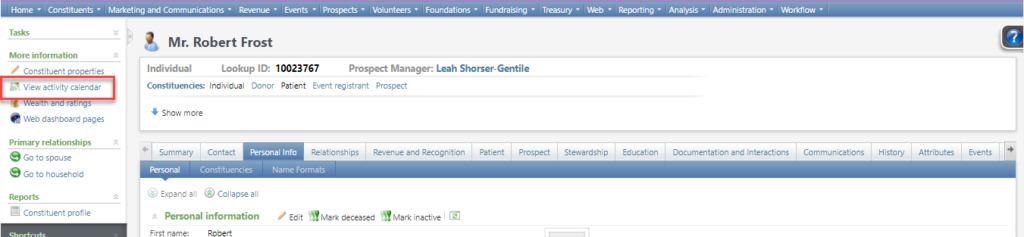
To access the Constituent Activity Calendar, click on View Activity Calendar under More information.
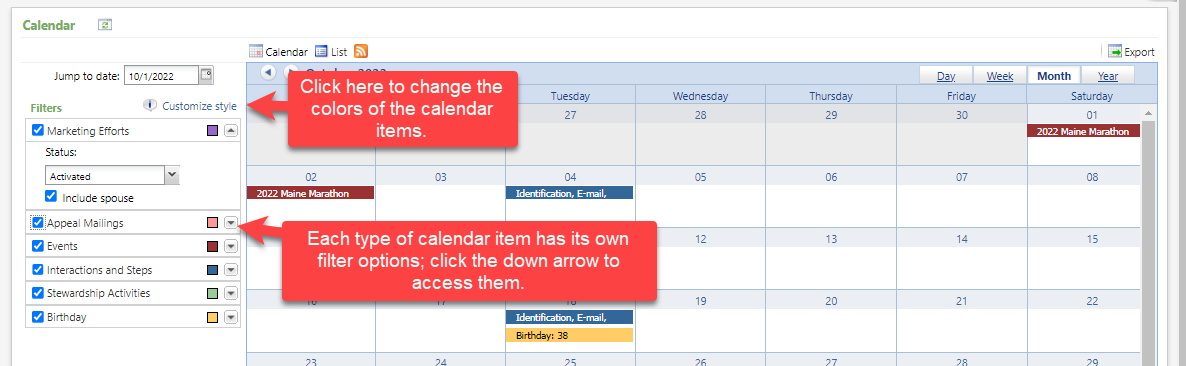
The calendar shows the items listed below. Each entry is color-coded for easy identification; click on Customize style to change the colors to suit your own needs.
- Marketing efforts
- Marketing efforts where this constituent is contained within the audience selection.
- Filters for
- Status (Activated or Not Activated)
- Include spouse
- Appeal Mailings
- Filters for
- Include Mailings with no selections
- Include spouse
- Filters for
- Events
- By default, for events in the past, the calendar show events if the constituent attended (Attended = Yes).
- By default, for events in the future, the calendar show events if the constituent might attend (Invitations where the status is no reply, or Registrations not set to canceled or will not attend).
- Use the Include non-attendees filter to ALSO show declined invitations and registrations where the status is canceled, will not attend, or no show.
- Filters for
- Categories (select one or more)
- Locations (select one or more)
- Sites (select one or more)
- Include non-attendees (see above)
- Include inactive (include invitations and registrations for inactive events)
- Only show my events (only show invitations and registrations for events where the current user is an Event Coordinator)
- Include spouse (show invitations and registrations for the constituent’s spouse)
- Interactions and Steps
- Shows interactions and plan steps that are not canceled or declined.
- Filters for
- Solicitors (select one or more from a list of all solicitors on any interaction or step for this constituent)
- Contact methods (select one or more)
- Categories/Subcategories (select one or more)
- Plan stages (select one or more)
- Sites (select one or more)
- Include historical plans
- Show only my activity (only show interactions where the current user is the Owner, or a Solicitor or a Participant)
- Include past due activity
- Include spouse
- Stewardship Activities
- Shows stewardship steps that are not canceled or declined.
- Filters for
- Assigned to (select one or more from a list of all Assign to values on any stewardship step for this constituent)
- Contact methods (one or more)
- Categories (one or more)
- Include stewardship reports (include Prospect research requests where reason = Stewardship report, excluding Rejected and Canceled reports).
- Show only my activity (show only steps where the current user is the Assigned To or a Participant)
- Include past due activity
- Include spouse
- Birthday
Good to Know!
- For Groups, the calendar lists items for members of the group and displays their names; for instance, hover over an Event to see a list of group members who are registered attendees.
- For any of these calendar items, click on the checkbox in the legend to remove them from the calendar entirely; this happens immediately. Note that for all other filters, click on Apply. Filters are “sticky” for users.
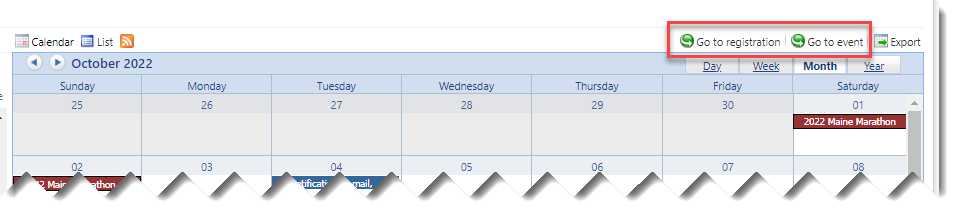
- Double-click on any calendar item to open the corresponding page. Some items will have different options; for example, if you click on an Event, options to Go to registration and Go to event appear above the calendar.
How Do I?
- links to other areas, longer blurbs