This entry describes how to replace a search screen in Atlas with a different search screen. Some search screens have different values to search on or filter the results, but these can be updated affiliate by affiliate as needed.
In this example, we are going to replace ALL instances of the “Constituent Search by Name or LookupID” with a custom version of the search screen.
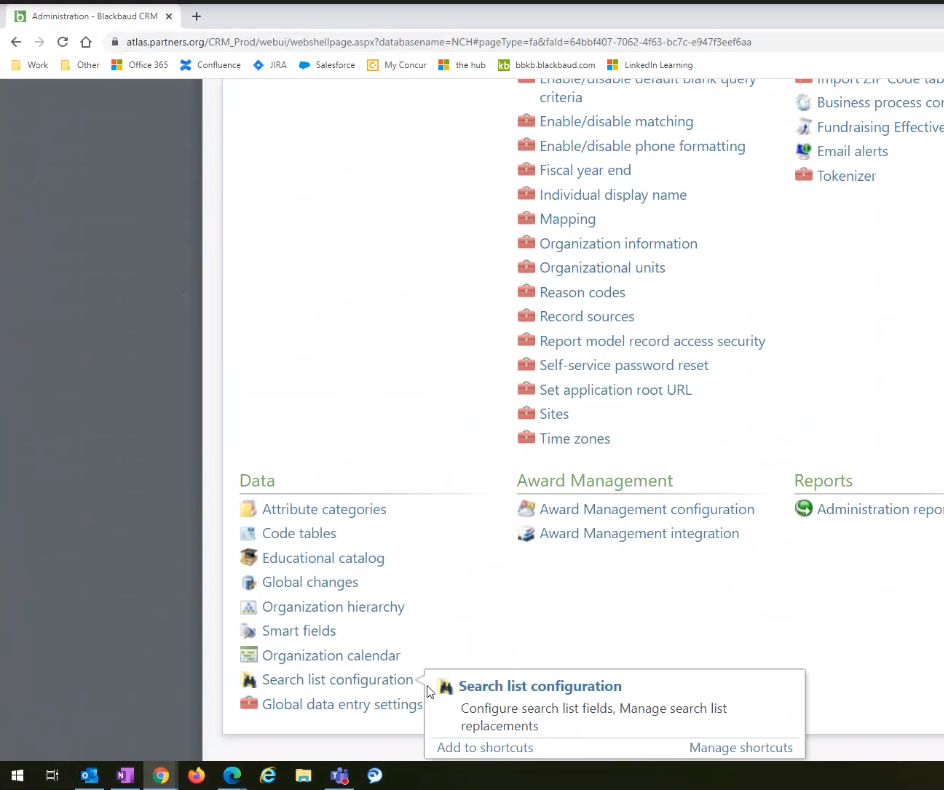
- Navigate to Administration/Search List Configuration
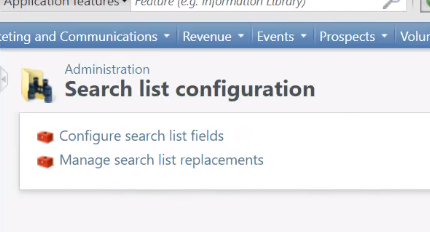
2. Choose Manage search list replacements
3. What you see then is a complete list of the replacements for this affiliate. What we want to do is replace ALL instances of the “Constituent Search by Name or Lookup ID” with “Constituent Search by Name or Lookup ID (custom)”.
NOTE: If you just want to replace ONE of the search lists, for example replace “Staff Search” ONLY with a new constituent search, you would just edit the ONE search you want to replace. In this example we are going to replace ALL of them.
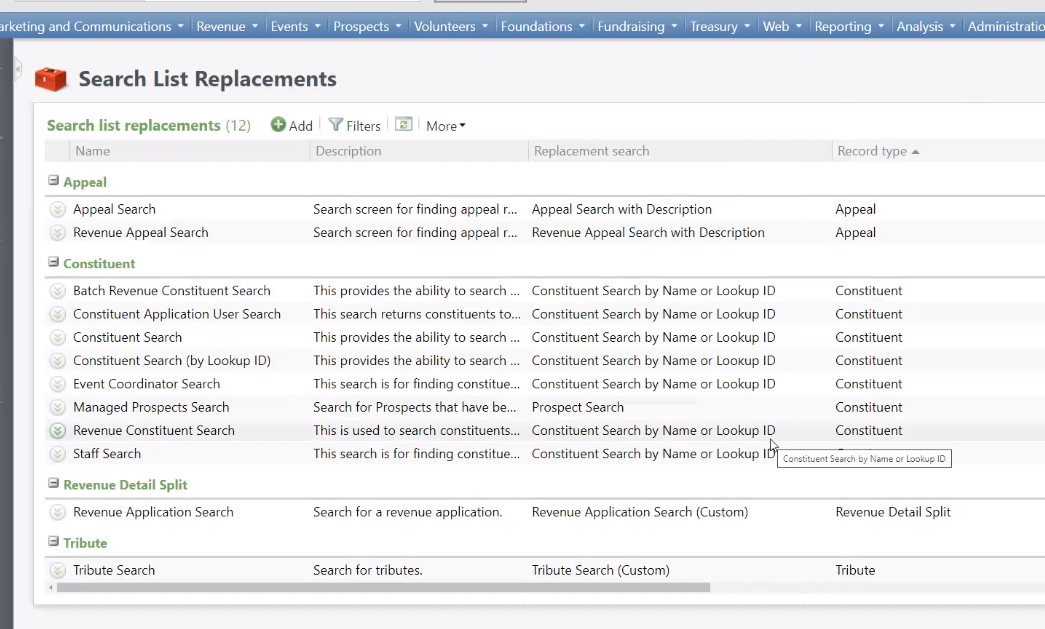
4. Because we want to replace all instances of the Constituent Search by Name or Lookup ID, we are going to add it as a new search and immediately replace it with the custom version.
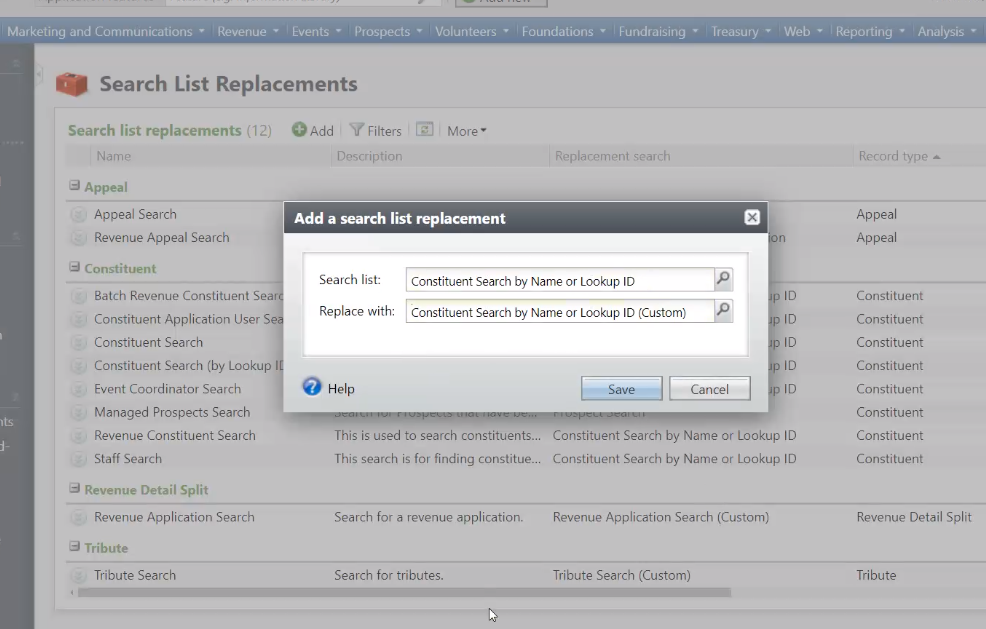
5. By adding the new search and the replacement, we “nested” the replacement for all instances of “Constituent Search by Name or Lookup ID”. For example, the
“Batch Revenue Constituent Search” is replaced with the “Constituent Search by Name or Lookup ID” and
“Constituent Search by Name of Lookup ID” is replaced with “Constituent Search by Name or Lookup ID (Custom)”
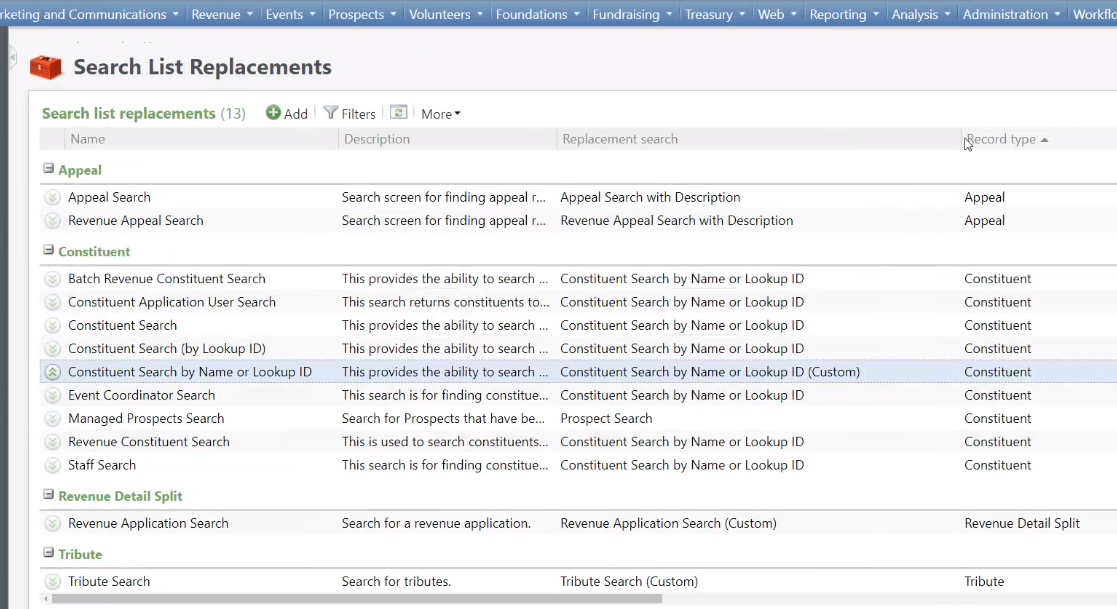
Reminder that this is to replace ALL instances. If you just want to replace one of the search lists, for example just “Staff Search”, you would EDIT that one search list and do the replace there.
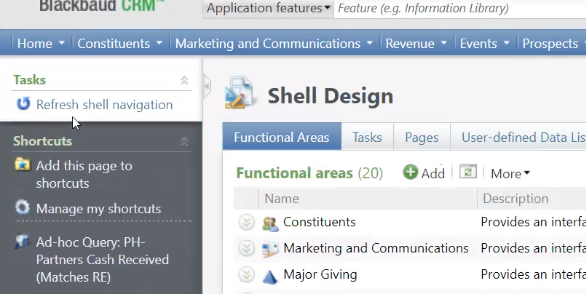
6. Lastly we need to update Atlas to use the new constituent search. Navigate to Administration/Application/Shell Design
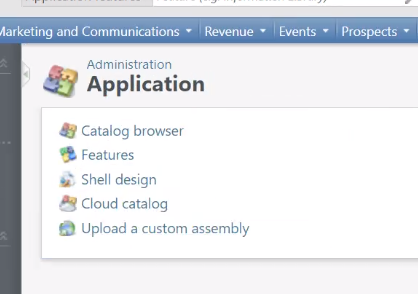
Click the “Refresh shell navigation” task in the left hand pane. Now when you